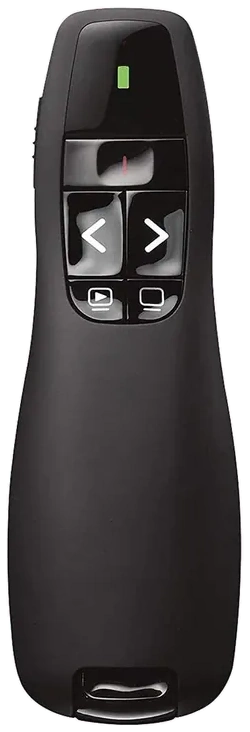
How to use a presentation clicker.
A presentation clicker — also called a wireless presenter — lets you advance slides, point with a laser, and blank the screen without walking back to the laptop. Here is how to use one, start to finish, using the GNKER range as examples.
From box to first slide.
1. Put in the battery
The K400 takes 2 AAA batteries, and the K500 and K801 take 1 AAA each; none of the three include them, so have them ready. The RF039 needs 2 AAA batteries as well — confirm the bundle with us when you inquire.
2. Plug in the USB receiver
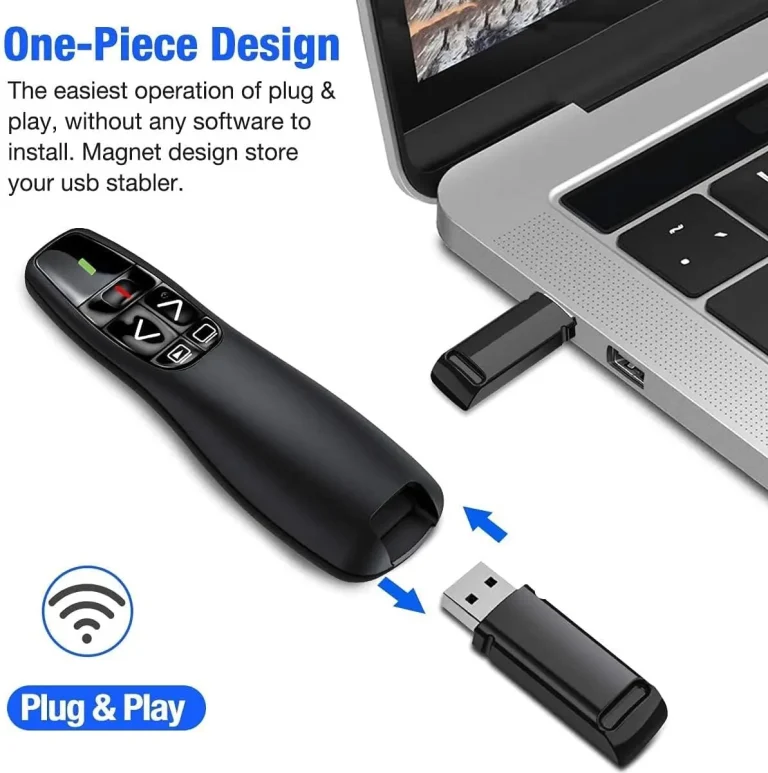
All four GNKER remotes are plug-and-play: plug the USB receiver into the laptop and present, with no drivers to install. The K400 stores its receiver inside the presenter body, the K801 stores its USB-A receiver in a slot inside the battery compartment, and the RF039 stores its dual USB-A / USB-C receiver inside the remote. The K500 ships with its USB receiver and a pocket clip.
3. Open the slideshow
Open your deck in PowerPoint, Keynote, or Google Slides and start the slideshow. The remote advances slides once the slideshow is running — not in the editing view.
4. Learn the buttons
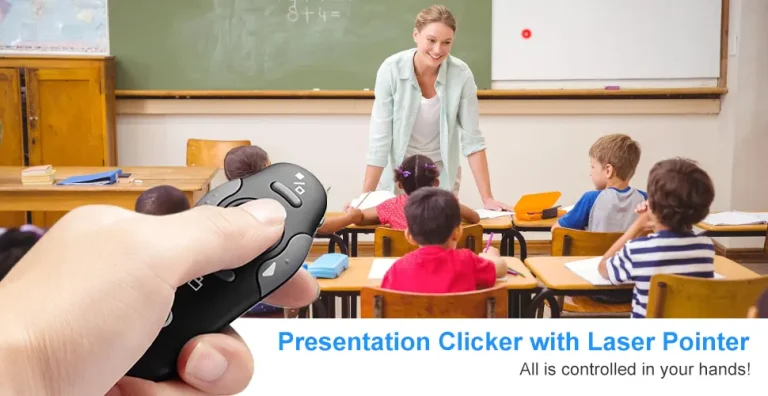
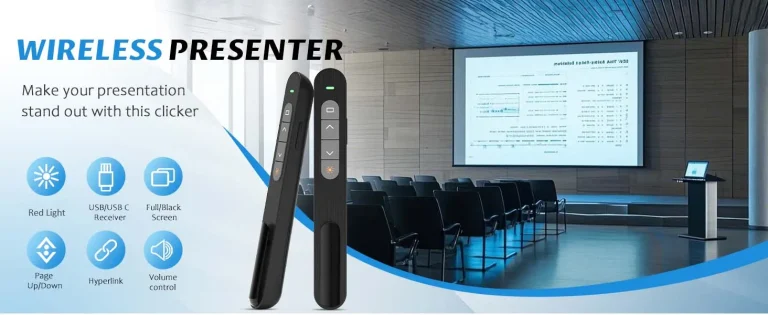
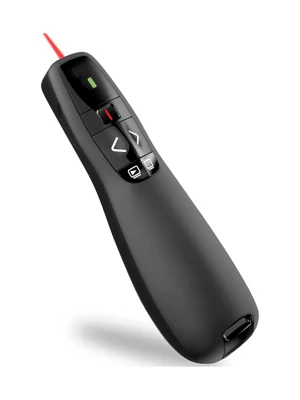
Every GNKER remote has the same core controls: next and previous slide, a red laser pointer, and full-screen and black-screen buttons. The laser reaches up to 328 ft (100 m) on all four models. The K500 also adds volume control and hyperlink navigation, and the K801 has five buttons including a power switch.
5. Mind the range
The control range is how far you can stand from the laptop: up to 39 ft (12 m) on the K400, up to 98 ft (30 m) on the K801 and RF039, and up to 328 ft (100 m) on the K500. Do not confuse it with the laser range — up to 328 ft (100 m) on all four — which is how far the laser dot reaches, not how far you can stand.
6. Pack it away
When you finish, put the receiver back in its storage slot — inside the body on the K400, in the battery compartment on the K801, inside the remote on the RF039 — so it travels with the presenter instead of getting lost.
Still choosing? See the four models compared side by side, or read how to connect a clicker to PowerPoint.
Which remote fits which room.
Frequently asked questions.
Do I need to install software to use a presentation clicker?
No. All four GNKER remotes are plug-and-play: plug the USB receiver into the laptop and present. No additional software or drivers are required.
The slides do not advance — what do I check?
First click once inside the slideshow window so it has focus, then check the battery, push the receiver firmly into the USB port, and try a different port.
How far from the laptop can I stand?
It depends on the model. The K400 lists up to 39 ft (12 m) of wireless control range; the K801 and RF039 list up to 98 ft (30 m); and the K500 lists up to 328 ft (100 m).
Which GNKER remotes work with Keynote?
The K400, K500, and K801 list Keynote among their compatible software, alongside PowerPoint and Google Slides. The RF039 lists PowerPoint, Google Slides, Word, and Excel.